In Buzz, observers are not enrolled directly into courses. Instead, administrators associate observer accounts with one or more student accounts. Before importing observer associations, ensure that all observers already have user accounts created in the platform.
Before You Begin
Confirm that each observer has an active Buzz user account.
Observers cannot be associated with students until their user accounts have been created.
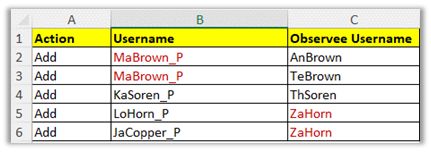
Enter the observer’s username (adult username) in Column B.
Enter the associated student’s username in Column C.
Continue adding additional observer/student relationships as needed.
Review the spreadsheet carefully to ensure all associations are accurate.
Example: An observer may be associated with multiple students, and a student may have multiple observers. For example, the observer MaBrown_P may be linked to two students, while the student ZaHorn may have two observer accounts associated with them.
3. Copy the Template Data
After completing the spreadsheet:
Select and copy all data from the template, including Row 1 (column headings).
Import Observer Associations
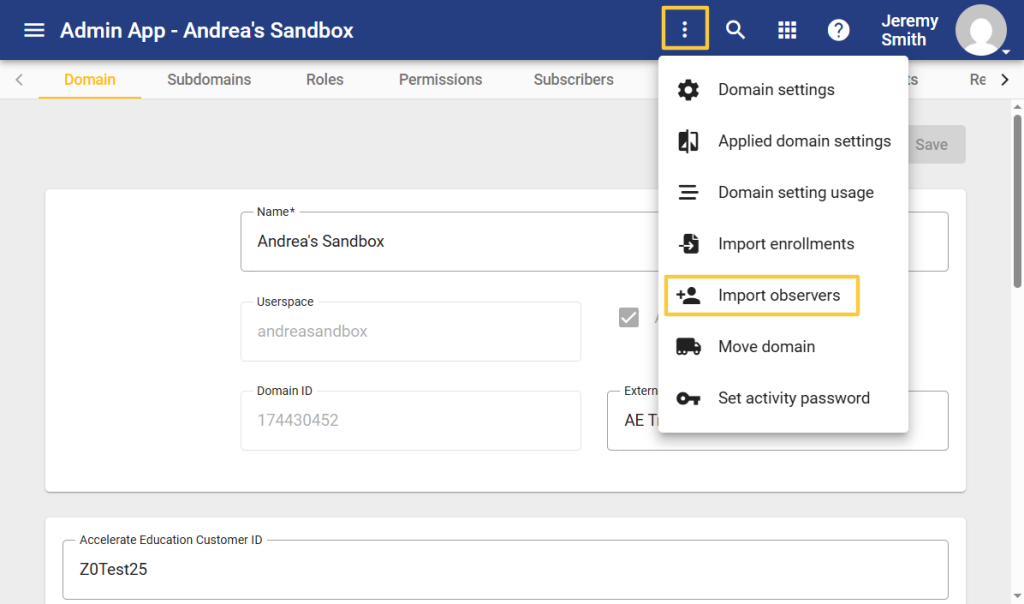
Navigate to the Domain Home Page/Dashboard.
Select the ellipsis menu (three dots).
Select Import Observers.
Paste the copied template data into the large blank field on the import screen.
Select Validate Data.
Review Validation Results
If validation errors are displayed, stop the import process.
Correct the errors in the spreadsheet and repeat the validation process.
Once validation is successful, select Import Data.
Review the import results for any errors before selecting Done.
Important: If errors occur during import, note the error messages, correct the spreadsheet, and repeat the import process.
Best Practices
Verify all usernames before importing.
Always validate data prior to importing.
Carefully review any error messages to ensure observer associations are imported correctly.