Initial Teacher Tasks
Target Audience: Teachers (Buzz)
Getting Started in Buzz
When you first begin working in Buzz, it may feel overwhelming—but don’t worry! These simple tasks are designed to help you get started on the right foot.
Log In to Buzz
Your administrator will provide you with your school’s unique Buzz URL. Be sure to bookmark this page for easy access.
The first time you log in, use the generic username and password provided by your administrator, or log in using your school’s single sign-on (SSO) option.
Update Your Password
After logging in, open the Profile menu in the upper-right corner and select Change Password.
Enter your original password and your new password, then select Change Password to save.
Verify Your Email
From the same Profile menu, choose Settings. You will see an option to verify your email address.
A verification code will be sent to your inbox. Enter the code, then select Save to return to the home page.
Complete Additional Profile Tasks
Return to Settings from the Profile menu to complete a few additional setup tasks:
Upload a Profile Image
In the Profile Picture section, select the + icon and upload your desired image.
Adjust Notification & Display Preferences
Review your notification settings, as well as your student name display options in the People and Gradebook views. Make any desired adjustments, then select Save.
Choose a Theme
Select Choose Theme from the Profile menu to change your navigation bar color and toggle between light and dark mode.
Recommendation: Use light mode for the best experience with Accelerate Education courses.
Customize Your Home Screen
By default, courses display as cards on your home screen. If you teach many classes, you may prefer the List View for easier navigation.
Review the Course Resources Folder
It is essential that teachers review the materials inside each course’s Resources folder. These items provide tools and information to help you support students and families.
Access the Resources Folder
To locate Resources, enter a course’s activities area and open the Resources folder.
What You May Find in the Resources Folder
Content in this folder may vary by course, but may include:
- Course objectives
- Materials needed
- General expectations
The Getting Started Lesson
All courses include a Getting Started lesson. This lesson contains key “how-to” resources for students. Teachers should be familiar with this content to better assist students and direct them to available support tools.
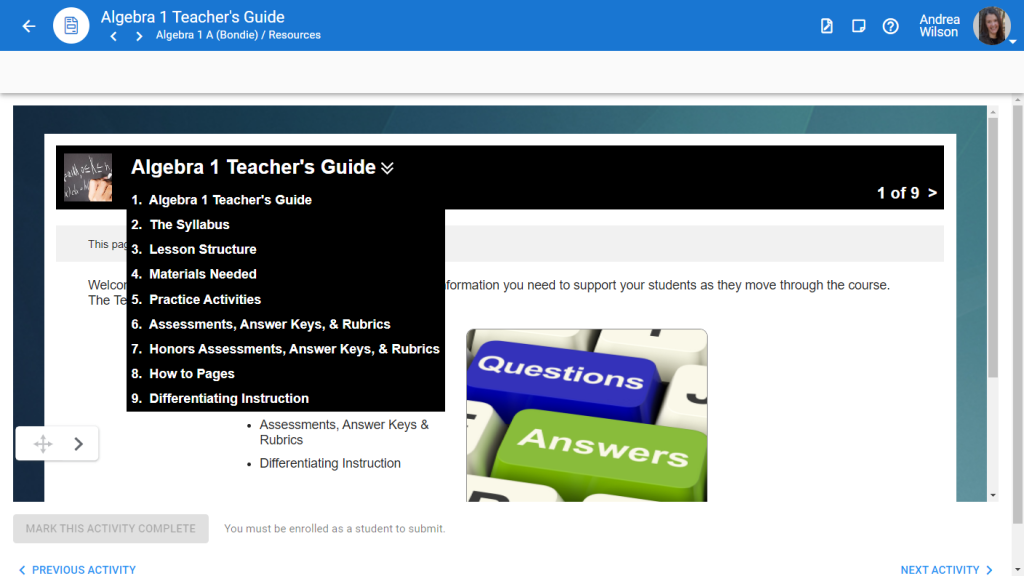
Review the Teacher’s Guide
Each course also includes a Teacher’s Guide, which contains:
- Syllabi for Semester A and B (if applicable)
- Answer keys
- Additional instructional information
Use the arrows or the dropdown menu next to the title to navigate through its pages. The content will vary by course, so take time to review each section.