
Needs Grading
Target Audience: Teachers (Buzz)

Introduction
The Needs Grading tool allows teachers to view and grade activities across all courses from a single location. Understanding how to use this tool effectively will streamline your grading workflow and help you stay organized.
From the Teacher App home page, select the Needs Grading icon to access the full list of assignments awaiting evaluation.
Using the Needs Grading Page
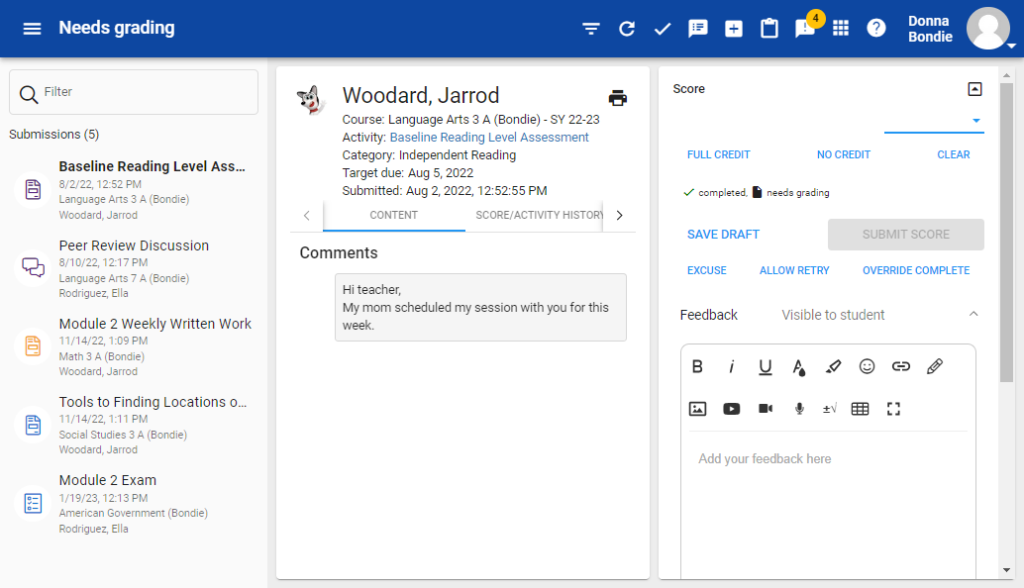
On the Needs Grading page, you will see a list of all assignments that require grading. Become familiar with each feature to make the most of this tool:
- Assignment List: Assignments are listed chronologically, with the oldest submissions at the top and the newest at the bottom.
- Color Coding: If you have applied color-coding to your courses in the Course Settings area, assignments will display with those colors for easy identification.
- Filter Box: Use the search filter to locate a specific assignment or to filter all submissions from a particular student.
- Course Filter Icon: Select the course filter icon to show only assignments from a specific course. Be sure to clear the filter when finished to avoid missing other submissions.
- Refresh Icon: Select the refresh icon regularly to clear the list of recently graded activities. You may also use your browser’s refresh function for the same result.
- Collapse/Expand Arrow: Use the collapse arrow in the upper-right corner of the Score box to increase your viewing space while grading. Select the expand arrow to return to the default view.
Viewing and Grading Submitted Work
Written Assignments
Written assignments typically appear in the main viewing window. If the file does not display automatically, select the attachment to download and open it.
Rubric-Based Assignments
When grading a rubric-based assignment, the complete rubric appears below the submitted work. You can:
- Enter scores directly into each rubric row
- Add feedback for individual rubric components
Quiz Free Response Questions
For free response items on quizzes or assessments, the question text appears along with suggested responses when available.
Scoring and Providing Feedback
Scores from rubric items or free response questions will automatically populate the total score box. You may adjust or manually enter the final score as needed.
After evaluating the assignment, provide feedback in the feedback box. Consider incorporating a variety of feedback formats, including:
- Written comments
- Audio feedback
- Video feedback
- Annotated documents
Submitting Scores
Once scoring and feedback are complete, select Submit Score. This action returns the score and feedback to the student. The next assignment needing grading automatically appears in the submission window.
Allowing Retries and Excusing Assignments
It is generally best practice to excuse an assignment before a student submits it. However:
- If a submission has already been made, you must enter a score before excusing the assignment to ensure it clears from the Needs Grading list.
- If you need to allow a retry or excuse an assignment, select the assignment title again from the main list and choose the appropriate option.