Using Groups to Provide Alternative Activities in Buzz
Target Audience: Teachers (Buzz)

Using Groups within Buzz allows teachers to provide alternative assignments or assessments to specific students.
Create Groups
If you have not yet created groups, this link walks through that process: https://training.accelerate.education/knowledgebase/creating-groups/.
Assign All Students to Groups
For this process, ensure that all students are assigned to a group. You will need a minimum of two groups:
- One group for students who will view the alternative activity
- One general group for students who will view the original activity
After confirming that all students are appropriately assigned, navigate to the Editor view for the desired course.
Duplicate the Activity
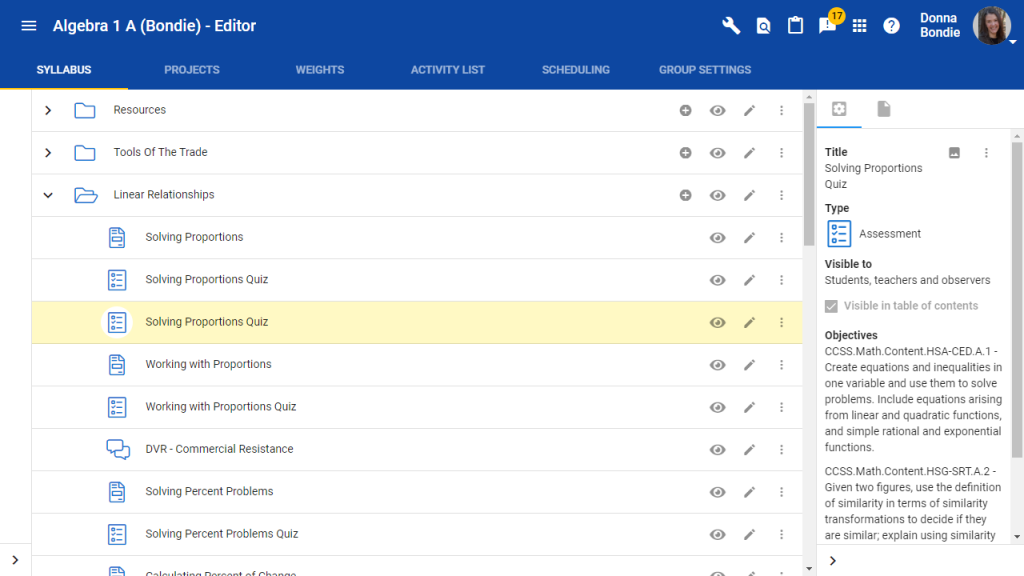
From the Syllabus tab, locate the graded activity for which you want to create an alternative version. Select the 3-dot ellipsis icon for that activity and choose Duplicate.
When the pop-up appears, select Duplicate again.
The duplicated activity will appear at the bottom of the module. Drag it so that it sits directly below the original activity.
Edit the Duplicate Version
To avoid confusion, select the pencil icon to edit the duplicated activity.
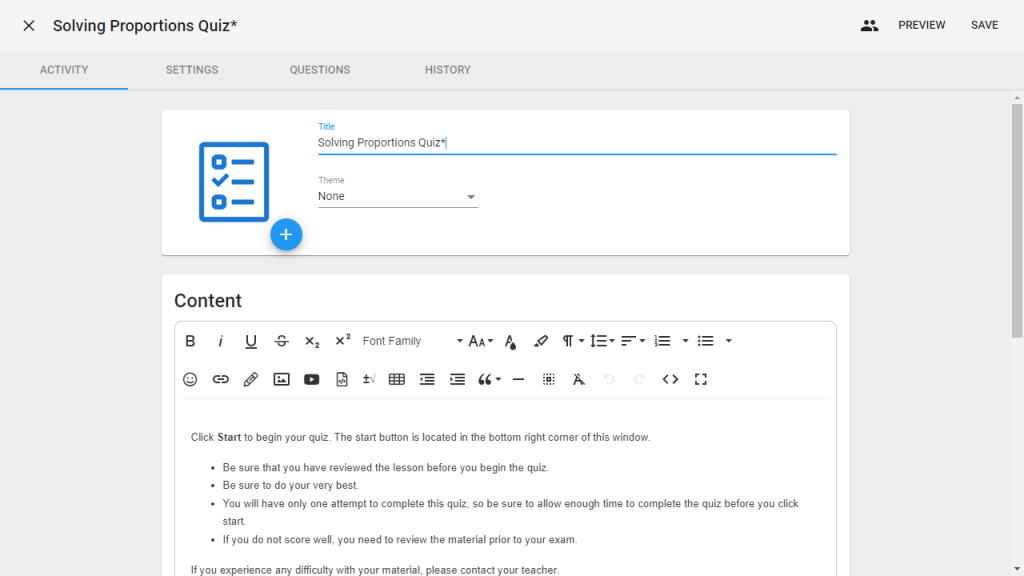
Edit the title so you can distinguish between the two versions. We suggest adding a subtle marker that is recognizable to you but not noticeable to students.
For written assignments, edit instructions and linked resources as needed. If no content changes are needed, navigate to the Settings tab.
Adjust Settings and Questions
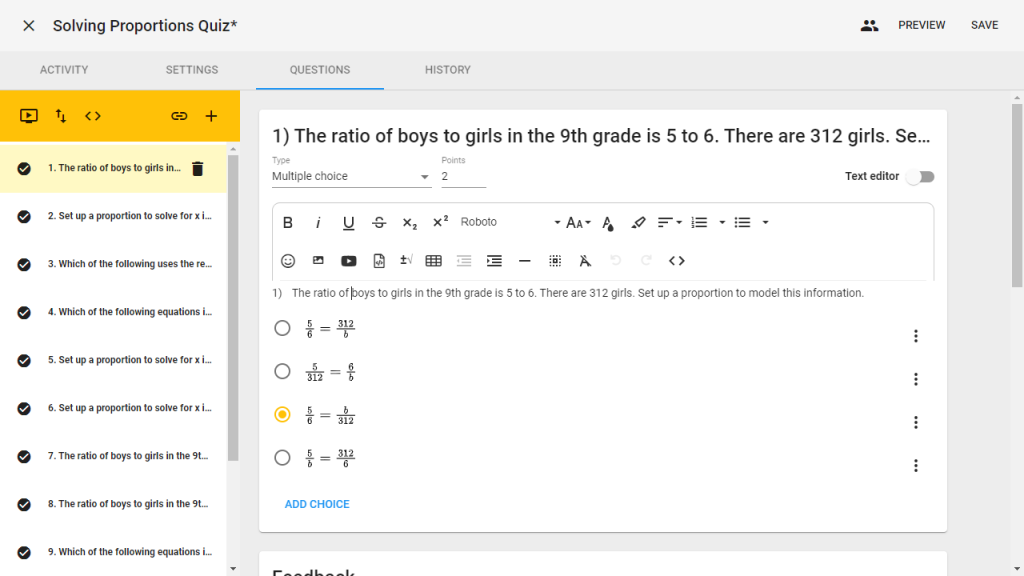
Update the activity settings as needed, then move to the Questions tab.
Select a question to view editing options. You may delete the question, edit wording or answer choices, change type or point value, or add answer choices. Click within the question or answer choice text to make edits.
Use the ellipsis menu next to an answer choice to remove it, add feedback, or lock its position. Once edits are complete, select Save.
Adjust Group Visibility
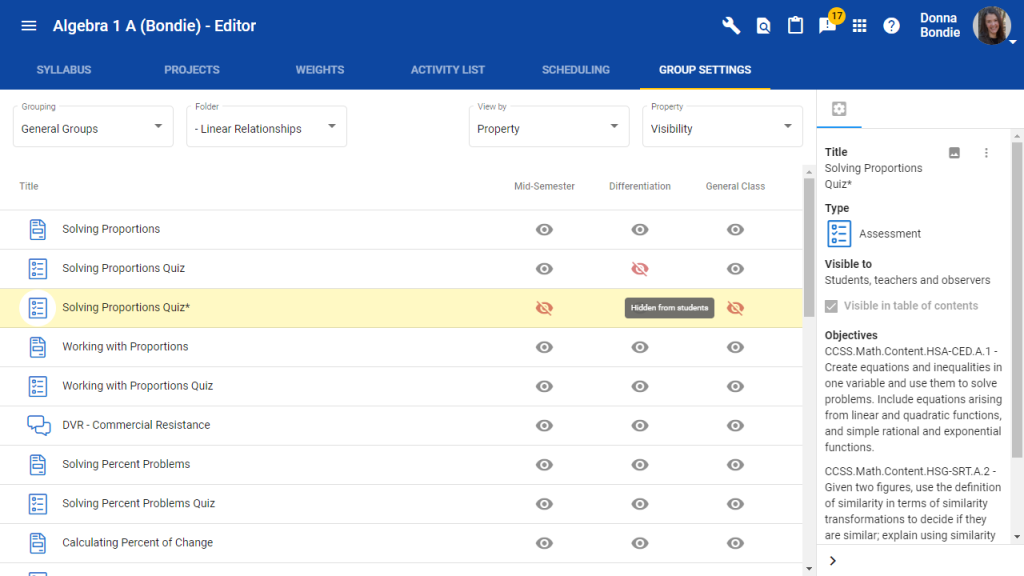
Now that the alternative activity is ready, ensure that each group sees the correct version. From the Editor menu, open Group Settings.
Select the eye icon to hide the original activity from the group that needs the alternative activity.
Next, hide the alternative activity from the other group(s) so that only the group who needs this activity can access it.
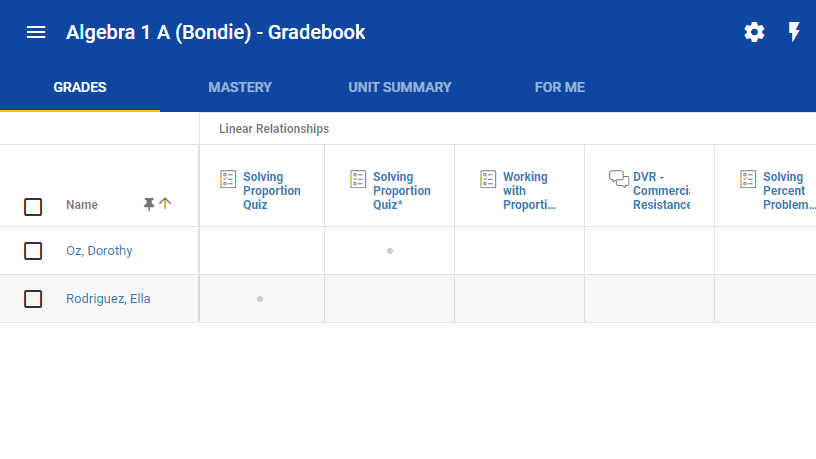
Gradebook View
In the gradebook, both activities will appear side by side. A dot will appear for any assignment the student will not see or complete. These hidden assignments are automatically removed from the student’s grade calculation.