Cloning a Learning Object in the CMS (Schoology Users)
Target Audience: Administrators, Curriculum Specialists, and other users with CMS training (Schoology)
After completing Content Management System (CMS) training, programs may still have questions as they begin editing course content. One of the first steps in the CMS editing process is cloning a learning object.
Programs do not edit Accelerate Education content directly. Instead, they create a clone of the original learning object, make edits to the cloned version, and then replace the original item with the updated clone so the changes are visible to students.
This article provides step-by-step instructions for cloning a learning object in Schoology.
Cloning a Learning Object in Schoology
Before cloning a learning object in the CMS, you must identify the exact lesson you want to edit. Begin in your Schoology course and create a duplicate of the lesson.
Duplicate the Lesson in Schoology
- From the Courses page, open the desired course and navigate to the module containing the lesson.
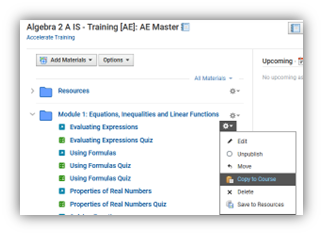
- Select the gear icon next to the lesson and choose Copy to Course.
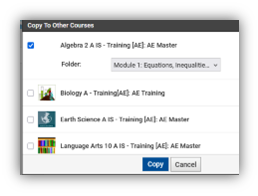
- Complete the required fields to copy the lesson within the current course.
- Select the checkbox next to the current course.
- Choose the folder where the duplicate lesson should be placed.
- Select Copy.
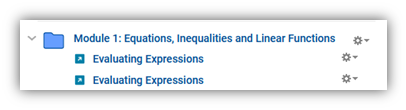
- Locate the duplicated lesson at the bottom of the module and move it to the desired location.
- Unpublish the original lesson by selecting the gear icon and choosing Unpublish.
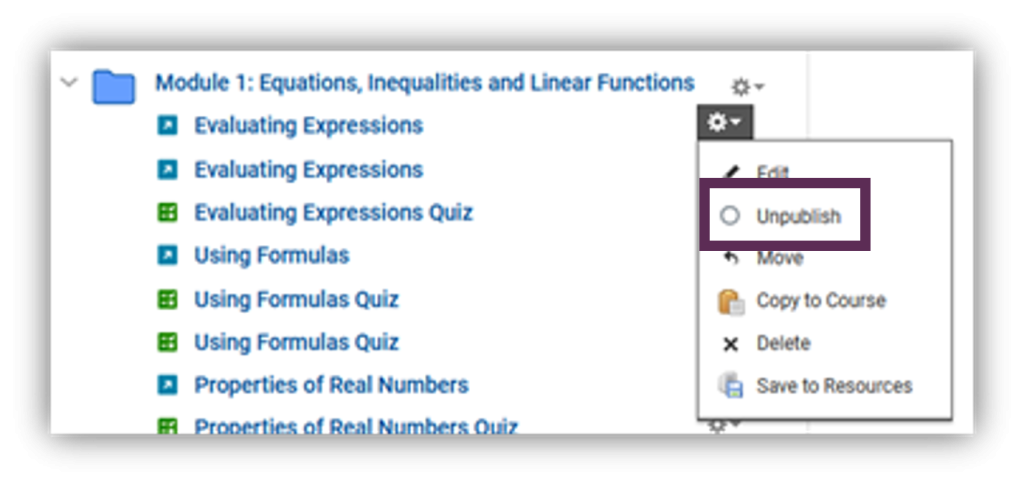
Note: Duplicating and unpublishing the original lesson provides a backup in case editing errors occur. If needed, you can delete the edited lesson and republish the original lesson, avoiding the need to reimport the course and redo previous edits.
Locate the Learning Object in the CMS
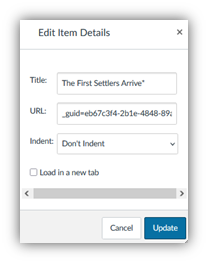
- To find the lesson in the CMS, locate its GUID ID. Select the ellipsis (⋮) next to the duplicated lesson and choose Edit.
- In the URL field, scroll to the right and copy the value that appears after
guid=. Keep this page open for later use.
Example:
eb67c3f4-2b1e-4848-89ac-d925baa789fc
- Log in to the CMS using your assigned username and password.
CMS URL: https://cms.accelerate-ed.com
Note: The CMS requires a separate login. If you have not completed CMS training, contact your Client Service Manager before proceeding.
- Paste the GUID into the Partial Title or Keyword field and select Search.
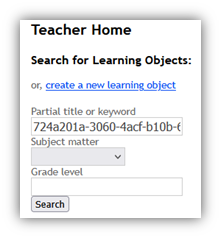
Because the GUID is unique, it will return the exact lesson you need.
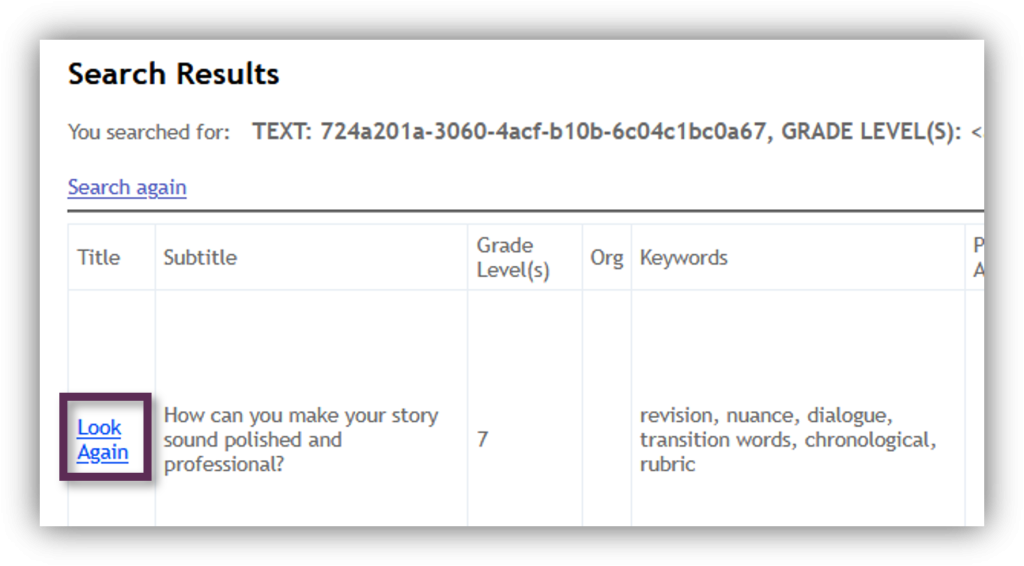
- Select the lesson title from the search results.
Verify and Clone the Learning Object
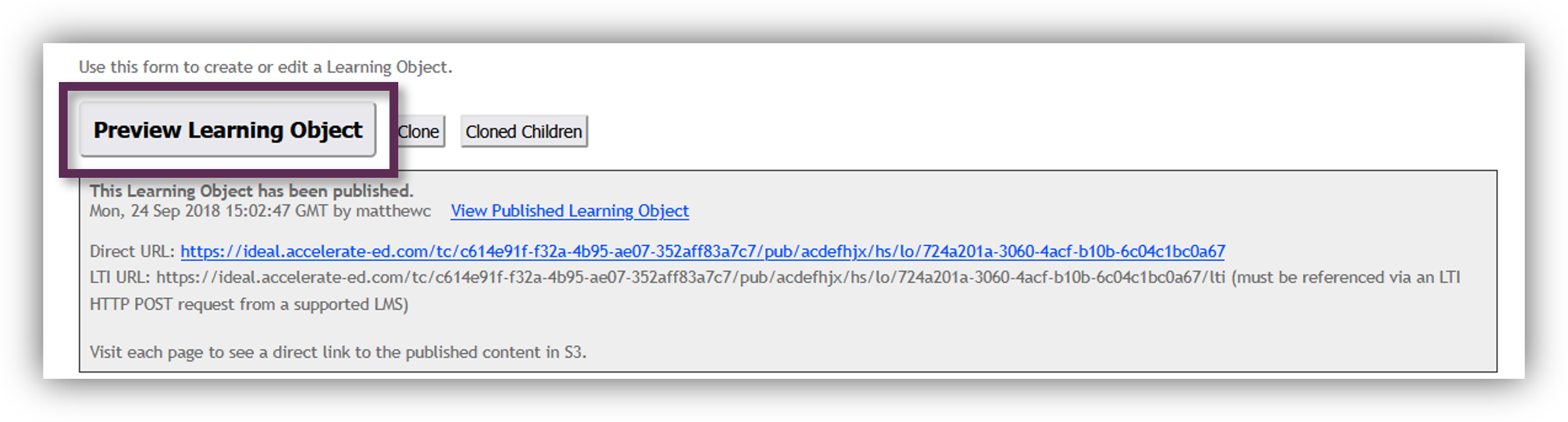
- To verify that you have selected the correct lesson, select Preview Learning Object (optional).
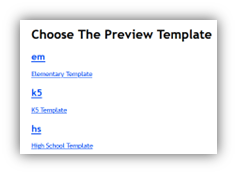
- Select the appropriate preview template for the course’s grade level.
- Confirm that the lesson is correct, then close the preview window.
- Select Clone, located next to Preview Learning Object, to begin the cloning process.
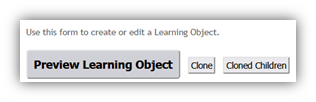
Note: Cloning is required because CMS edits are local to your program. The original Accelerate Education content cannot be modified.
- Select OK when the warning message appears.
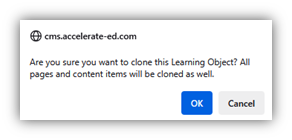
- Wait while the learning object is cloned.
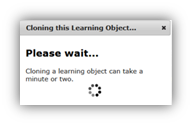
- Select OK again when the successful clone message appears.
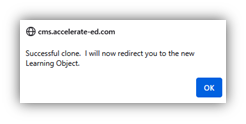
Additional options will now be available, indicating that the lesson has been successfully cloned and is ready for editing.

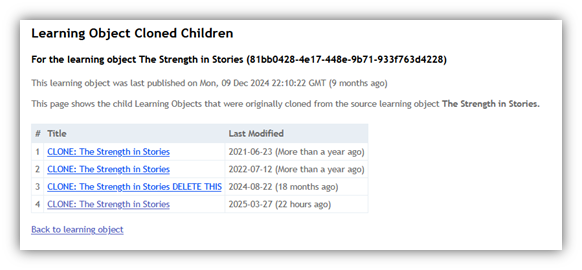
Note: The Cloned Children button displays all program-specific clones created from the original learning object. This can be useful for reviewing existing edits or identifying previous versions. Selecting a clone opens that version for viewing or editing.