
Grading the Participation Assignment
Target Audience: Teachers (Buzz)

Introduction
After students’ end dates have passed, all submitted work has been graded, and any missing work has either been assigned a zero or marked as exempt, the final grading action for the semester is to grade the Participation assignment. This assignment triggers course completion and should only be graded once you are ready for students to be marked as Completed in the course.
Participation Assignment Score Options
Be sure you have guidance from your administrator on how to grade the Participation Assignment. Some programs grade the assignment as it appears, while others use additional criteria such as course completion, timeliness, attendance at synchronous sessions, communication, or initiative. The provided chart offers ideas, but each program should follow a consistent policy for this assignment. No matter which approach you choose, note that a grade of at least 1% must be entered for the Participation activity in order to trigger the auto-completion process.
| 100% | 85% | 70% | 50% |
|---|---|---|---|
| completed course | completed course | completed course | did not complete course |
| completed majority of work on time | completed 75% of work on time | completed 50% of work on time | rarely completed work on time |
| attended and contributed to synchronous meetings | attended 75% of synchronous meetings | attended 50% of synchronous meetings | rarely attended synchronous meetings |
| consistently responded to teacher communication | generally responded to teacher communication | rarely responded to teacher communication | never responded to teacher communication |
| asked for help when needed | asked for help when needed | occasionally asked for help when needed | did not ask for help when needed |
Batch Grade the Participation Assignment
You may grade this assignment individually or use batch grading to assign the same score to multiple students at once. To begin, open the course gradebook, scroll to the far right, and select the Participation assignment.
Select Students
Choose the names of all students who will be receiving the same grade. If the same grade applies to all students, use the checkbox at the top to select all. Remember that all grading should follow your school or program’s policy.
Access Batch Update Scores
Click the wrench icon and select Batch Update Scores from the menu.
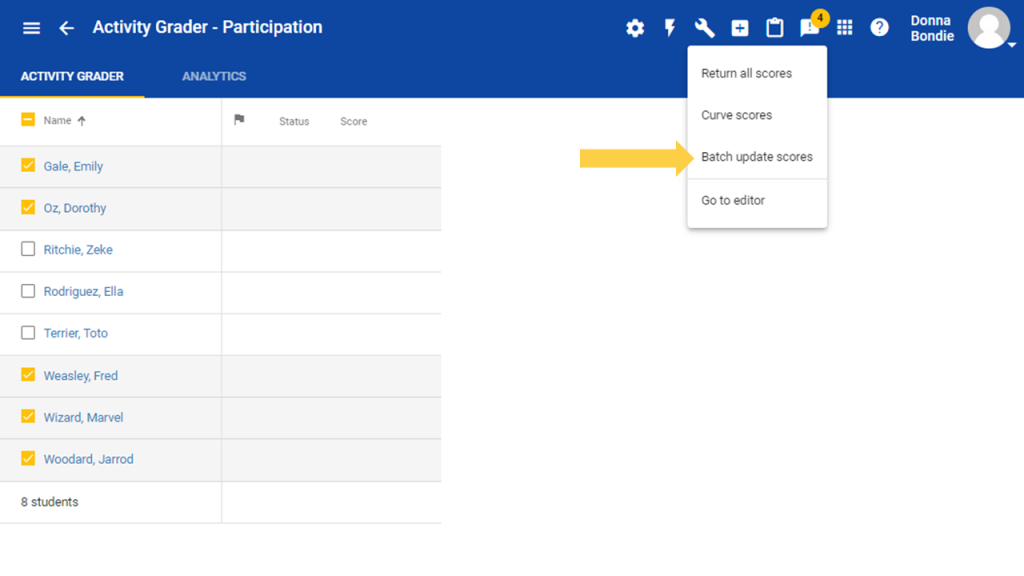
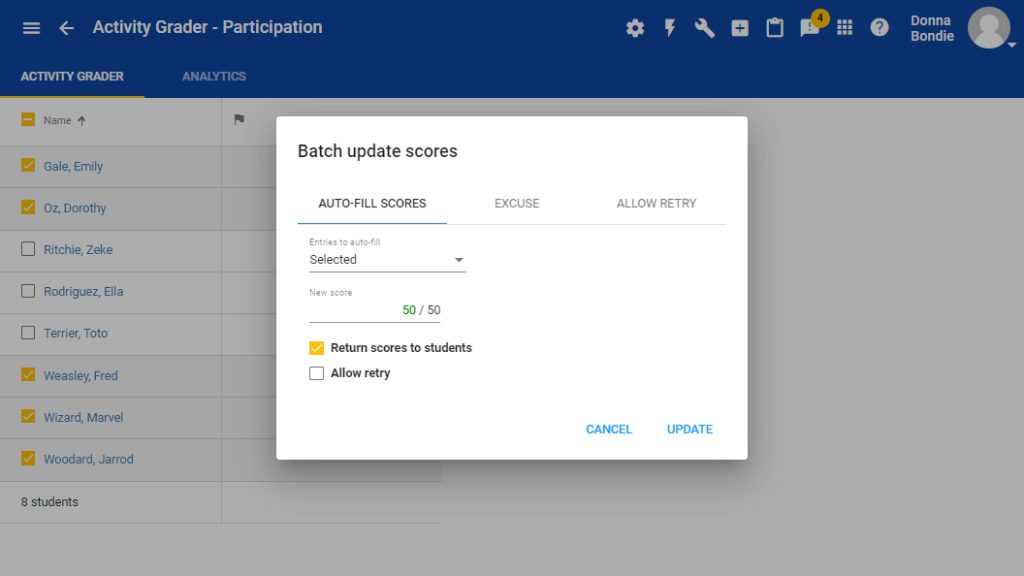
Auto-fill Scores
In the pop-up window, enter the score you want to assign and select Update.
Repeat as Needed
If additional students should receive a different Participation grade, repeat the batch update process for those students.
Why Student Names Disappear After Grading
After each batch update, the students you graded will no longer appear in the Participation list. This is expected behavior. They have entered the auto–grade-out process for the course. This process typically takes 4–7 hours, so wait until the next day before pulling final grades.
This automated process:
- Updates the student’s enrollment status to Completed
- Assigns zeroes to any remaining, unsubmitted assignments
- Calculates the student’s final course grade
Why Student Data May Still Appear
If a student’s data remains visible after updating, there are three possible reasons:
| Issue | Required Action |
|---|---|
| Student never submitted any assignments | Enter a zero for at least one activity. |
| Course includes a second Participation assignment | Enter a grade for the second Participation assignment. |
| Administrator requested manual course completion | No action needed; the administrator will complete the process. |