
Observer View
Target Audience: School-Based Observers (Buzz)
Observer View Landing Page
Upon logging in, you will see a list of the students assigned to you. Review this list regularly to ensure all expected students appear—and that none are listed who should not be assigned to you.

Note: If you have both Admin and Observer permissions, Buzz will prompt you to choose a role each time you log in.
Observer Notifications
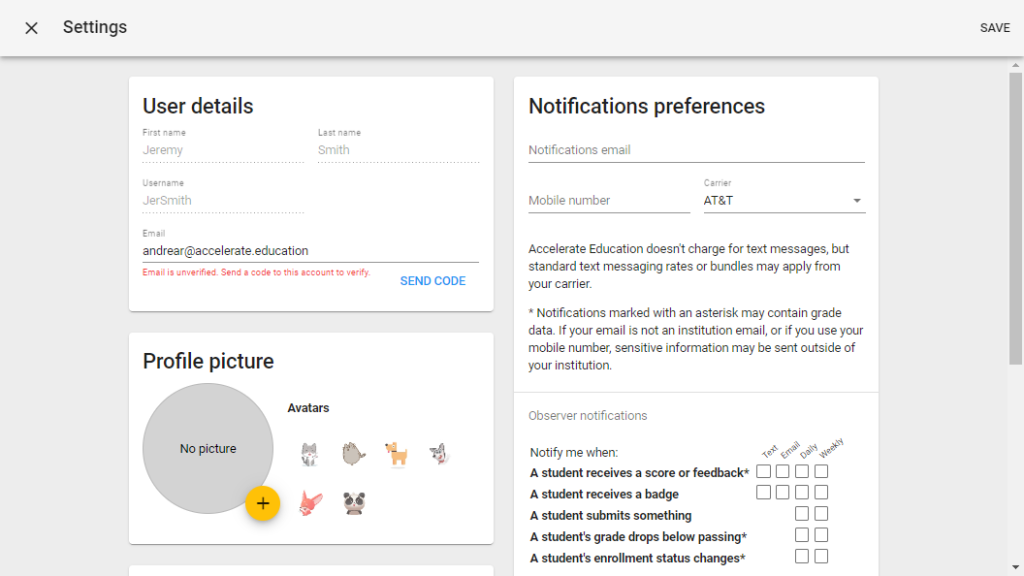
From the profile menu in the upper right corner, you can choose which notifications you want to receive about your students. Adjust these settings based on the type and frequency of updates you wish to receive.
Viewing a Student’s Home Page
To begin observing your students, select a student’s name from the list.
You will then see the student’s home page—exactly as they see it—with two key differences:
- The upper-left corner displays Observer App instead of Student App.
- Your profile image overlays the student’s profile image in the upper-right corner.
At a glance, review the student’s current score and progress on the course cards to identify where attention or intervention may be needed.
The To-Do List and Calendar
The student’s To-Do List displays items due in the next few days as well as any past-due activities. In most courses, only graded activities appear here.
For observers, past-due items are especially important, as falling behind pace can make it difficult for students to complete courses on time.
Students can also use their calendar for a more comprehensive view of upcoming assignments and assessments. The calendar may be filtered by day, week, or month.
Activity Stream
The Activity Stream allows you to see the types of feedback teachers are giving your students. Pay particular attention to:
- Requests for retries on low-quality or blank work
- Feedback that signals a need for additional support
Announcements also appear here, though they are typically less critical for observers.
Using the Main Menu
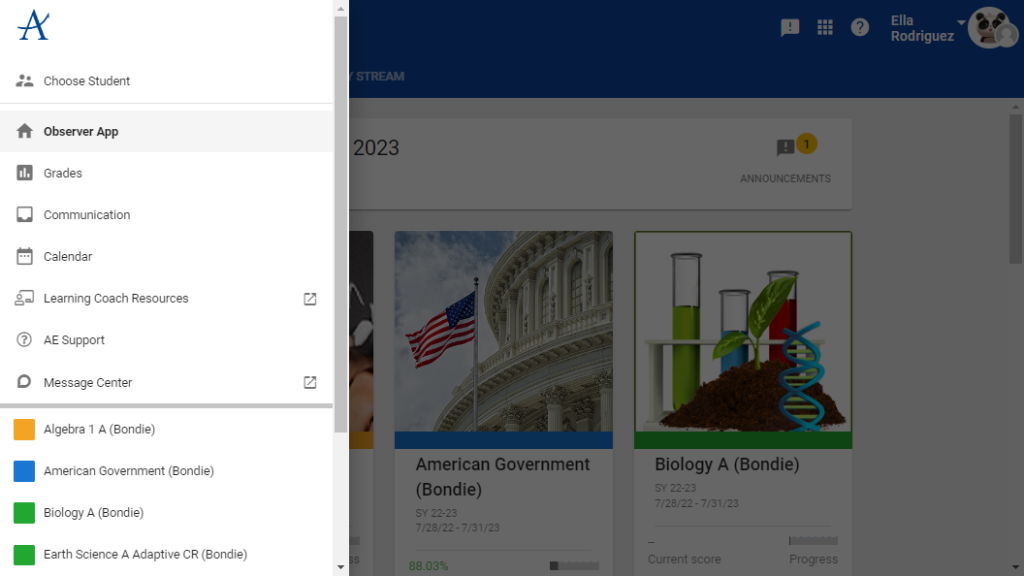
Open the main Buzz menu in the upper left corner to access key tools for monitoring student progress.
Menu Options for Observers
- Grades: Takes you to the student’s grades view, which we will explore in detail below.
- Calendar: A highly recommended tool for helping students track due dates. More efficient than the To-Do List.
- LC Resources: Links to the Learning Coach Resources site, which provides tools and guidance to support student learning.
Grades Page Overview
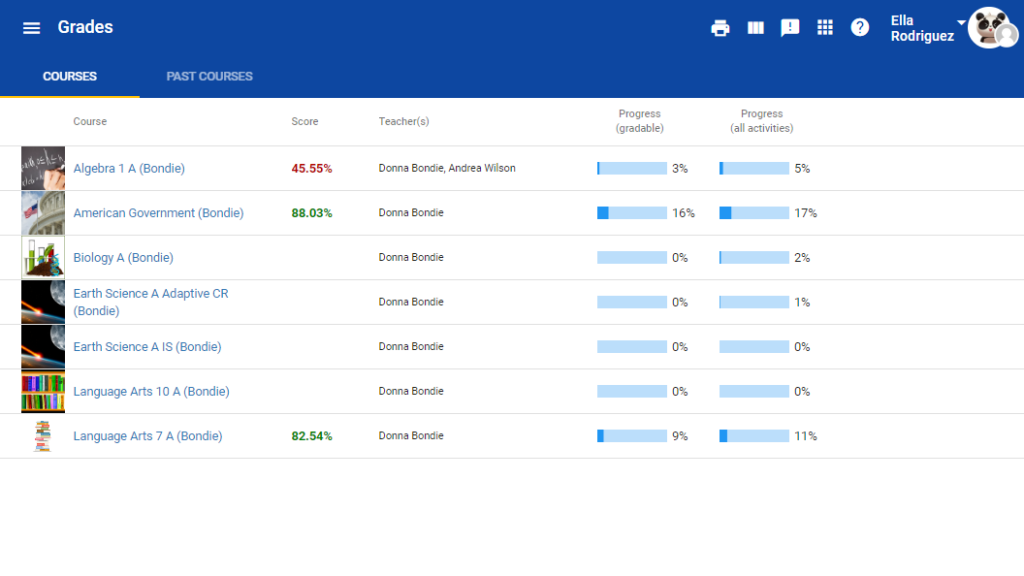
The student’s Grades page displays a list of all active courses. Review each highlighted feature to better understand the student’s performance and progress.
- Score: Shows the student’s current grade for each course, formatted according to your school settings.
- Teacher(s): Lists the instructor(s) for each course.
- Progress Bars: Two indicators show progress based on:
- Gradable activities only
- All course activities
- Past Courses: Displays a list of completed or previous courses.
- Printer Icon: Creates a printer-friendly version of the Grades page.
- Edit Visible Columns: Allows customization of displayed columns, such as start/end dates and days remaining.
Viewing Grade Details for a Single Course
Select any course name to open the detailed grade view for that specific course.
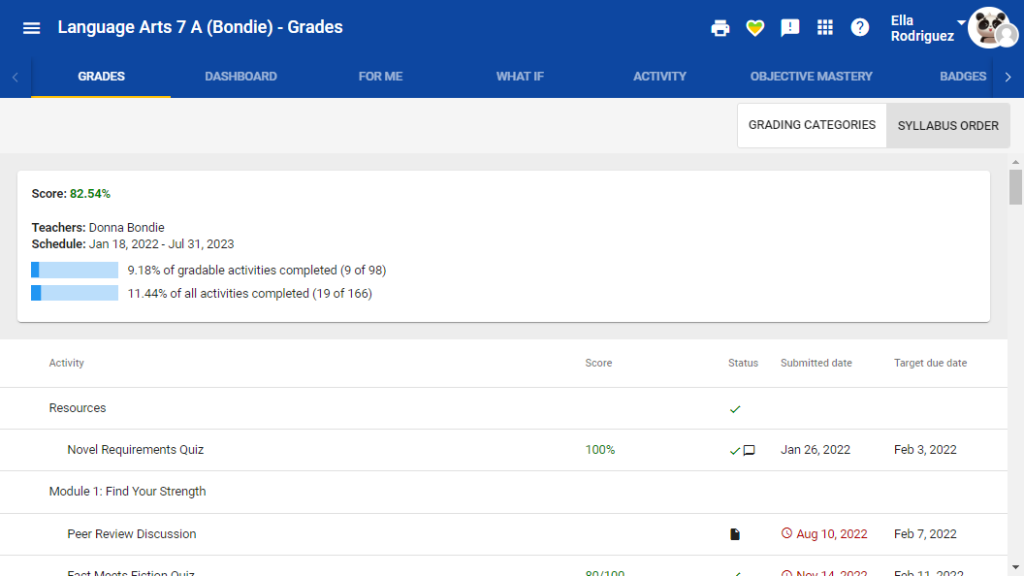
By default, assignments are grouped by grading categories. For easier use, especially when working alongside students, we recommend switching to Syllabus Order.
A printer icon at the top generates a printable version of the course grade details. Some observers and students print this early in the year to use as a checklist.
If required, students can access self-assessments through the heart icon.
Information Displayed in a Course’s Grade Details
- Current grade based on submitted work
- Teacher information
- Start and end dates for the course
- Progress through gradable activities and all activities
- Score, status, submitted date, and due date for each activity
- Chat icon indicating teacher feedback
- Document icon indicating submitted but ungraded work
Activity Tab
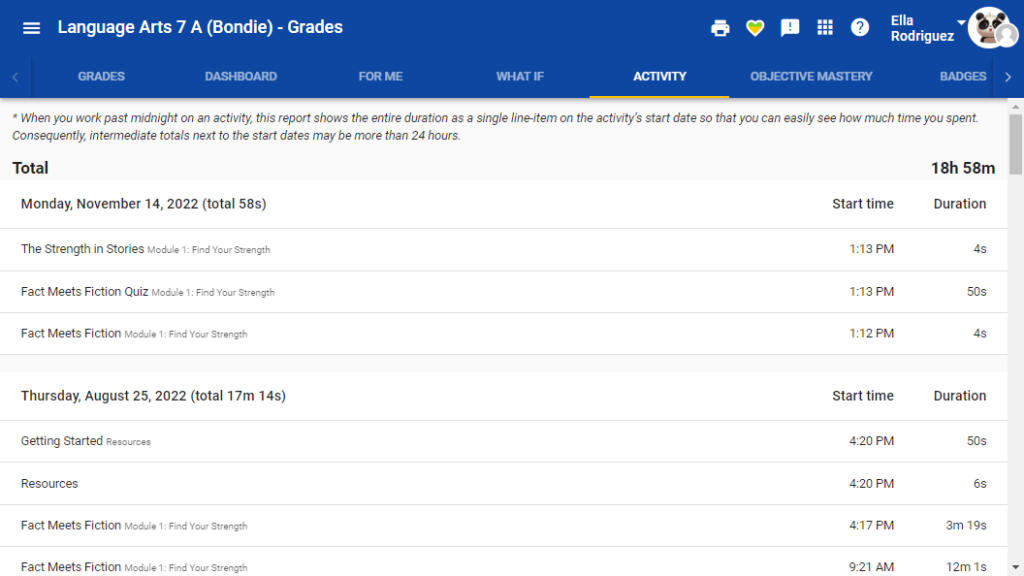
The Activity tab is particularly helpful for mentors and observers. It shows:
- Dates the student worked in the course
- Total time spent in the course
- Start time and duration for each completed activity
This information can be useful when helping struggling students build stronger study habits and understand the connection between time invested and academic performance.
Navigating to Course Activities
From the grades view, open the main menu (hamburger icon) and select Activities to access the student’s course landing page, where upcoming assignments and lessons are listed.
Switching Between Students
If you are monitoring more than one student, open the hamburger menu and select Choose Student to switch to another student’s dashboard.