
Hiding Content
Target Audience: Teachers (Buzz)

Introduction
Accelerate Education content is customizable to meet program and student needs. Note, you should make as many edits as possible before students begin working to lessen the impact on their calendars, progress, and other course areas.
Hiding Modules
After reviewing your course, determine whether any modules or lessons should be hidden.
❗Important: Do not use this process to manage student pacing. Hiding items affects progress, pacing, and grades and can cause unintended consequences. Only hide items you intend to keep hidden for the entire duration of the course.
Hidden items no longer appear in students’ activity lists, calendars, or gradebooks.
To begin, access the course Editor.
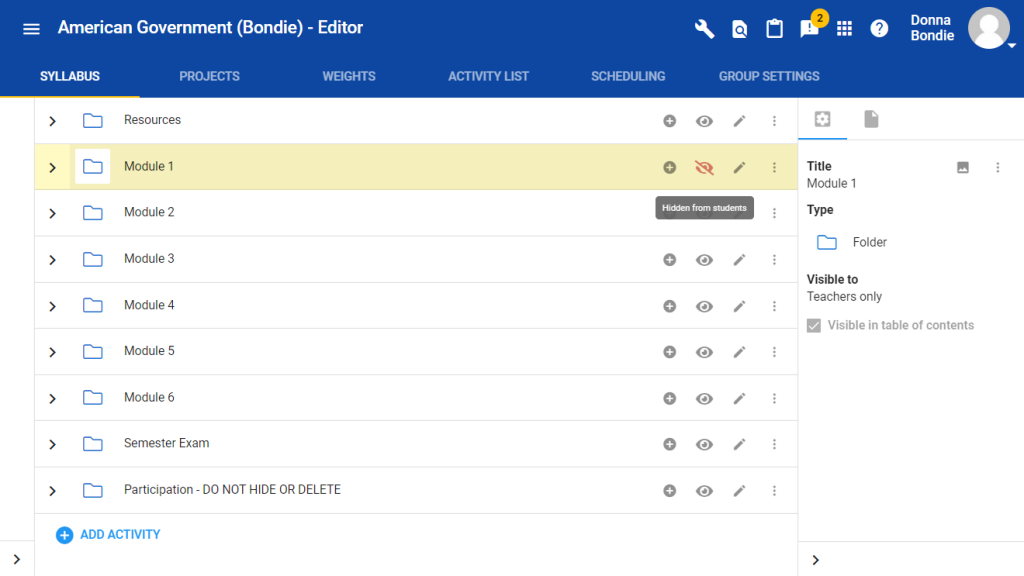
From the Syllabus tab, locate the module you wish to hide. Select the eye icon next to the module name to hide it from students.
Once hidden, the eye icon will appear red with a slash to indicate it is not visible to students. Repeat this process as needed for other modules.
Hiding Individual Activities
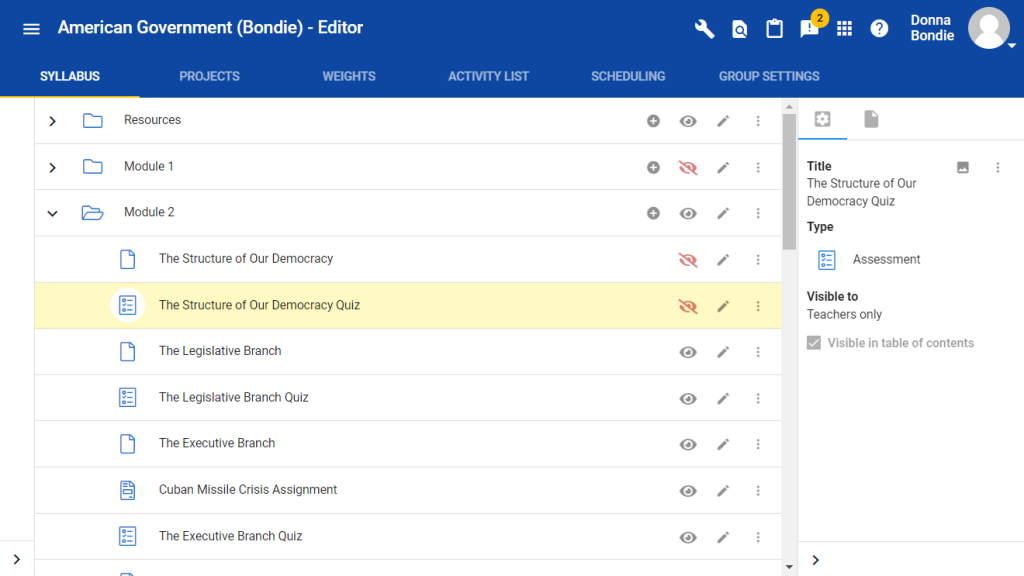
To hide specific activities rather than entire modules:
- Select the module folder to open it.
- Select the eye icon for each activity you want to hide.
As with modules, hidden activities will show a red, slashed eye icon.
Participation Assignment (Do Not Hide)
At the end of the syllabus for every course, you will find a Participation folder. This folder contains the Participation assignment, which serves as the trigger for student course completion.
Neither the Participation folder nor the assignment inside it should ever be hidden or deleted. Doing so prevents accurate course completion.